
If you have ever wanted to turn a simple text description into a stunning, photorealistic image, FLUX.2 Pro makes it easier than ever. Whether you are a digital artist, a marketer creating visual content, or simply curious about AI-powered creativity, this getting started guide will walk you through everything you need to know about using FLUX.2 Pro to generate incredible images in minutes.
What Is FLUX.2 Pro and Why Should You Try It?
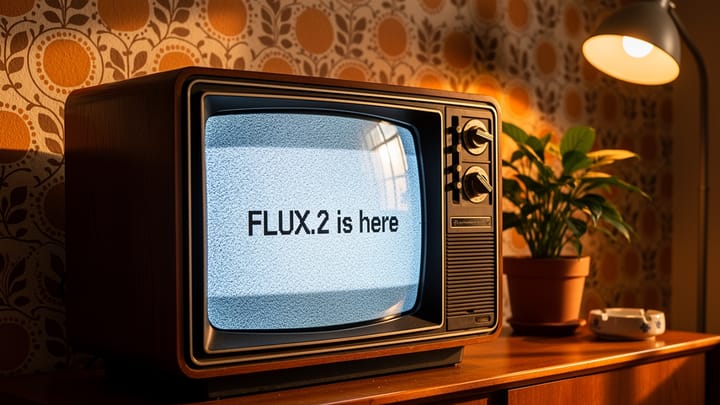
FLUX.2 Pro is a state-of-the-art AI image generator built on advanced rectified flow transformer architecture. Developed by Black Forest Labs, it delivers photorealistic outputs at resolutions up to 4 megapixels with exceptional prompt adherence. What sets FLUX.2 Pro AI apart from other generators is its ability to produce images with natural proportions, realistic skin tones, intricate fabric details, and legible text rendering — areas where many AI models still struggle.
Unlike older generation models, FLUX.2 Pro understands complex prompts and translates them into visuals that closely match your creative vision. Whether you need product mockups, concept art, social media visuals, or personal creative projects, FLUX.2 Pro delivers professional-grade results without requiring any design skills.
How to Get Started with FLUX.2 Pro in 3 Simple Steps
Getting started with FLUX.2 Pro is straightforward. Here is a quick walkthrough to generate your first AI image:
Step 1: Create Your Free Account
Visit FLUX 2 PRO AI and sign up for a free account. New users receive free credits to start generating images immediately — no credit card required. Once registered, you will have access to the full suite of AI tools including the AI image generator, video generator, and background remover.
Step 2: Write Your First Prompt
Navigate to the AI Image Generator page. You will see a text input area where you can describe the image you want to create. Here are some tips for writing effective prompts:
- Be specific: Instead of "a cat", try "a fluffy orange tabby cat sitting on a windowsill, golden hour sunlight, bokeh background, photorealistic"
- Include style keywords: Add terms like "photorealistic", "cinematic lighting", "oil painting style", or "minimalist flat design"
- Specify composition: Mention camera angles, framing, and perspective such as "close-up portrait", "aerial view", or "wide-angle shot"
- Add technical details: Include lighting conditions, color palettes, and mood descriptors
Step 3: Generate and Refine
Click the generate button and watch as FLUX.2 Pro transforms your text into a high-quality image. Generation typically takes just a few seconds. If the result is not exactly what you envisioned, refine your prompt and try again — each iteration helps you learn what works best.
Ready to Create Your First AI Image?
Start generating stunning images with FLUX.2 Pro today. Free credits included for new users.
FLUX.2 Pro Text-to-Image: Mastering the Core Feature
The text-to-image feature is the heart of FLUX.2 Pro. It allows you to generate images from nothing but a written description. Here is how to get the most out of it:
Understanding Prompt Structure
A well-structured prompt typically follows this pattern:
[Subject] + [Setting/Environment] + [Style] + [Technical Details]
For example:
- "A professional headshot of a woman with braided hair, neutral studio background, soft lighting, 4K resolution, photorealistic"
- "A cozy coffee shop interior, rainy day outside the window, warm amber lighting, watercolor illustration style"
- "A futuristic cityscape at sunset, flying vehicles, neon signs with readable text, cinematic wide shot, sci-fi concept art"
Prompt Length and Detail
FLUX.2 Pro excels at understanding longer, more detailed prompts. While a short prompt like "mountain landscape" will produce a result, adding specific details dramatically improves output quality. Aim for 20-50 words in your prompts for the best balance of control and creative freedom.
Aspect Ratio and Resolution
Choose the right aspect ratio for your intended use:
| Aspect Ratio | Best For |
|---|---|
| 1:1 (Square) | Social media posts, profile pictures |
| 16:9 (Landscape) | Desktop wallpapers, YouTube thumbnails |
| 9:16 (Portrait) | Phone wallpapers, Instagram Stories |
| 4:3 (Standard) | Blog images, presentations |
FLUX.2 Pro Image-to-Image: Transform Existing Photos
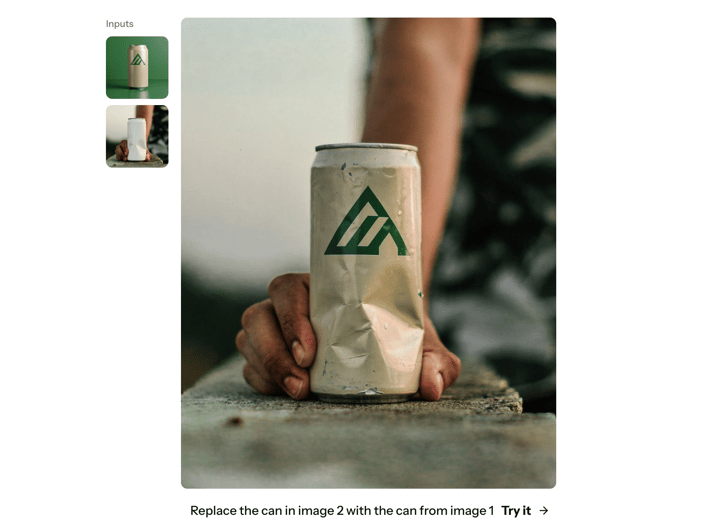
Beyond text-to-image generation, FLUX.2 Pro also supports image-to-image transformation. This feature lets you upload an existing photo and use AI to modify, enhance, or completely reimagine it.
Common use cases for image-to-image include:
- Style transfer: Transform a photo into an oil painting, anime style, or pencil sketch
- Scene modification: Change the background, lighting, or season in a photograph
- Enhancement: Improve image quality, add details, or fix imperfections
- Creative exploration: Use a rough sketch as a starting point for a polished AI-generated image
To use this feature, navigate to the AI Image Generator, upload your source image, and describe the changes you want to make in the prompt field.
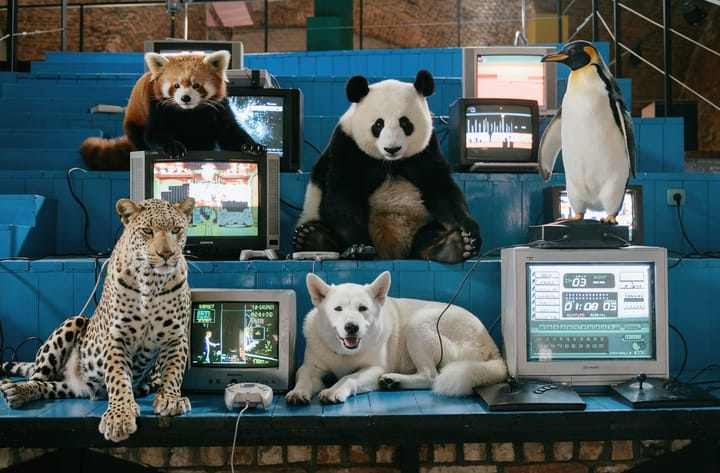
Transform Your Ideas into Stunning Visuals
Use text-to-image and image-to-image features to bring any creative vision to life.
Essential Tips for Getting Better Results with FLUX.2 Pro
As you start using FLUX.2 Pro, these practical tips will help you generate consistently better images:
1. Use Negative Context Wisely
When your results include unwanted elements, adjust your prompt to emphasize what you do want rather than listing what you do not. Focus on positive descriptions — telling the model exactly what to create yields better results than trying to exclude things.
2. Iterate and Experiment
Your first generation might not be perfect, and that is completely normal. The best approach is to:
- Start with a basic prompt
- Review the output and identify what to improve
- Add or modify specific details in your prompt
- Generate again and compare results
3. Learn from the Community
Visit the Showcases page to see what other creators have made with FLUX.2 Pro. Studying successful generations and their prompts is one of the fastest ways to improve your own results.
4. Save and Organize Your Creations
All your generated images are saved in your My Creations dashboard. Use this feature to track your progress, revisit successful prompts, and build a portfolio of your AI-generated artwork.
5. Take Advantage of All Available Tools
FLUX 2 PRO AI offers more than just image generation. Explore the full toolkit:
- AI Background Remover: Instantly remove backgrounds from any image
- AI Video Generator: Create short video clips from text prompts
- AI Audio Generator: Generate sound effects and audio content
- AI Music Generator: Create original music tracks with AI
Understanding FLUX.2 Pro Credits and Pricing
FLUX.2 Pro uses a credit-based system that makes it easy to manage your usage:
- Free credits: Every new account receives free credits to get started
- Pay-as-you-go: Purchase additional credits when you need them
- Subscription plans: For regular users, subscription plans offer the best value with monthly credit allowances
Each image generation consumes a set number of credits depending on the resolution and complexity. Visit the Pricing page for detailed plan comparisons and to find the option that best fits your needs.
Start Your FLUX.2 Pro Journey Today
Sign up now and get free credits to experience the power of AI image generation firsthand.
Frequently Asked Questions About Getting Started with FLUX.2 Pro
Is FLUX.2 Pro free to use?
Yes, FLUX.2 Pro offers free credits to every new user so you can try the AI image generator without any payment. Once your free credits are used, you can purchase more or subscribe to a plan on the Pricing page.
What image resolutions does FLUX.2 Pro support?
FLUX.2 Pro supports output resolutions up to 4 megapixels, which is sufficient for high-quality prints, digital marketing materials, and professional design work. You can choose from multiple aspect ratios to match your specific needs.
Do I need design experience to use FLUX.2 Pro?
Not at all. FLUX.2 Pro is designed to be accessible to everyone. Simply describe what you want in plain language, and the AI handles all the technical aspects of image creation. The more descriptive your prompt, the better your results will be.
How long does it take to generate an image?
Most images are generated within a few seconds. The exact time depends on the resolution and server load, but you can typically expect results in under 10 seconds.
Can I use FLUX.2 Pro images commercially?
Yes, images generated with your account can be used for commercial purposes. Check the terms of service for specific licensing details and usage guidelines.
What is the difference between text-to-image and image-to-image?
Text-to-image creates an entirely new image from a written description, while image-to-image transforms an existing photo based on your text prompt. Both features are available in the AI Image Generator and serve different creative workflows.